How to Connect MAX Messenger to Umnico
MAX is a Russian messaging app that supports text communication, audio/video calls, and file sharing. With a wide range of features, including channels, chatbots, and digital ID, the app is becoming an increasingly popular tool for both personal and business use.
Umnico omnichannel messaging platform allows you to combine popular communication channels into a single workspace, automate routine tasks, distribute inquiries among agents, and analyze their performance. Integrating MAX with Umnico enables you to respond to customers directly in the messaging app from your CRM or the platform's web interface.
This solution is suitable for small and medium-sized businesses, including online shops. It helps them respond faster to customer inquiries and capture incoming leads even during non-working hours.


Connecting MAX to Umnico
1. In your Umnico account, navigate to «Settings → Channels → Main → MAX». If you already have channels connected, scroll down to the «Add more» section.
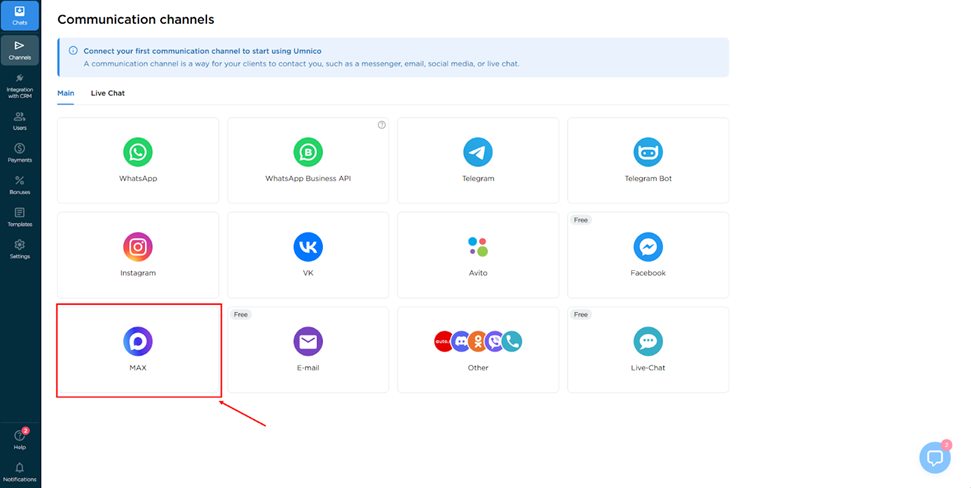
2. A window displaying a QR code will open.
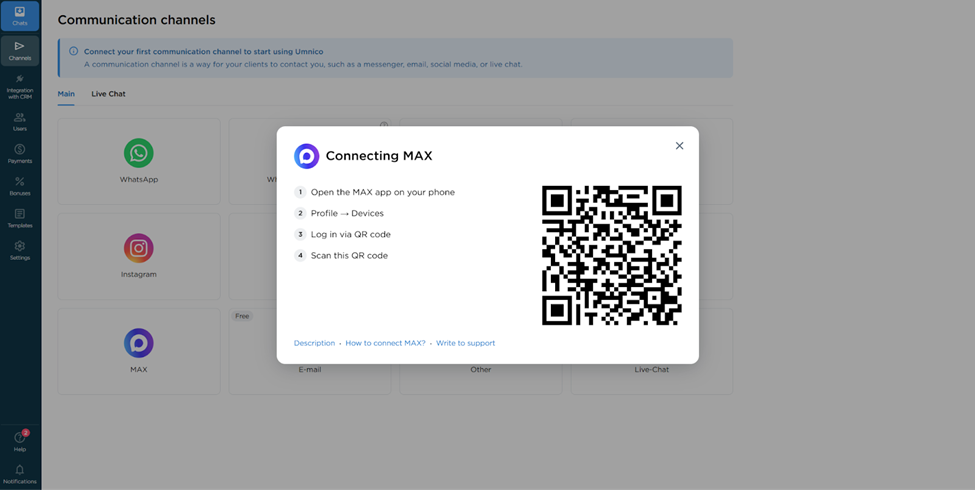
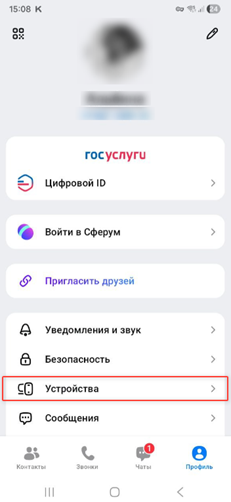
3. Open the MAX app on your mobile device, go to «Профиль» (Profile), and tap on «Устройства» (Devices).
4. Select «Войти по QR-коду» (QR code login) option.
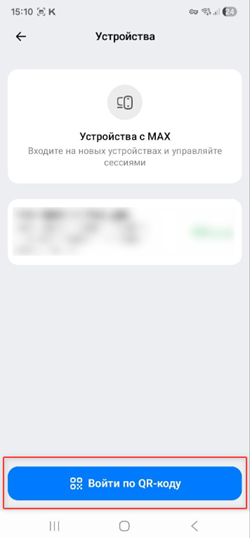
5. Scan the QR code displayed in Umnico with your mobile device.
6. Done! After successful authorization, the connection window will close, and MAX will appear in your list of connected channels.

⚡Important: to ensure the stability of the integration, please make sure that Two-Factor Authentication (2FA) is disabled in your MAX Messenger security settings (or properly configured to allow third-party sessions).
Tutorial Video
If video works better for you, check out the tutorial below to connect the messenger.
Where to find incoming MAX messages in Umnico
Once the setup is complete, all new incoming messages from MAX will automatically appear in the «Chats» section («Inbox» menu). To better understand the interface features and how to distribute dialogues among employees, we recommend reviewing Chats guide.
Help & support
If you encounter any issues during the connection process or if the QR code fails to scan, our support team is ready to help.
To reach Umnico support, click the «Chat with support» bubble in the bottom-right corner of your screen. Or go to the «Help → Chat with support» section in your Personal account.
Related Guides & articles
We recommend exploring
How to Connect VKontakte to Umnico
How to Connect Telegram to Umnico
You might be interested
MAX messaging app explained
Customer Experience Optimization: What You Should Know

 3-days free trial period