Connecting MAX to amoCRM
MAX has an audience of more than 100 million users, and the messaging offers extensive functionality for customer communication through both private messages and group chats and channels. Integration of MAX with amoCRM through the Umnico platform allows you to unite the messenger with the CRM system, speed up request processing, and build a transparent, manageable sales funnel.
Using MAX integration with amoCRM through Umnico you can:
✅ Receive new requests from MAX as deals in amoCRM.
✅ Respond to customer messages directly from the CRM interface.
✅ Automate business processes: tag dialogue, set statuses, and assign inquiries to agents.
✅ Initiate a dialogue with a customer from amoCRM.
✅ Analytics: monitor response time and sources of incoming inquiries.
How to set up MAX integration with amoCRM
To connect MAX to amoCRM, follow simple steps according to our instructions. The connection process will take several minutes.
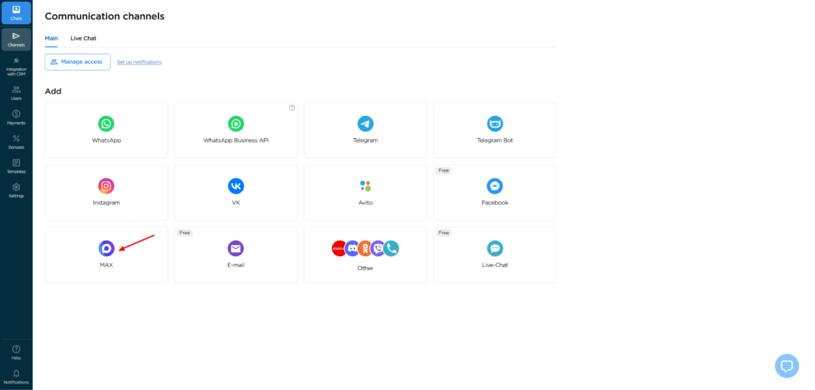
1. In your Umnico personal account, go to the "Channels — Main — Max" section.
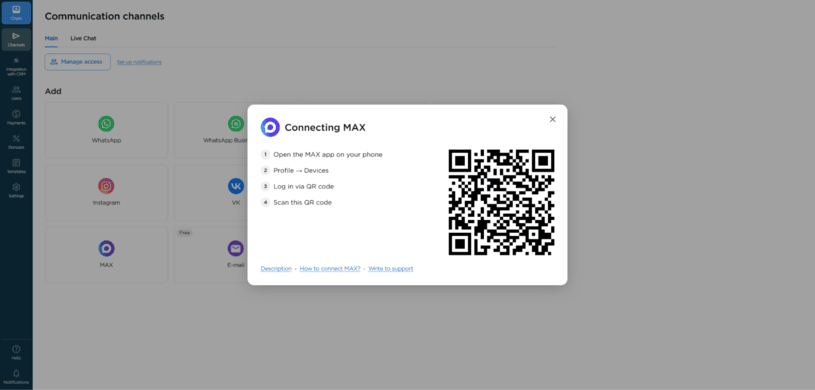
2. In the window that opens, a QR code will be displayed.
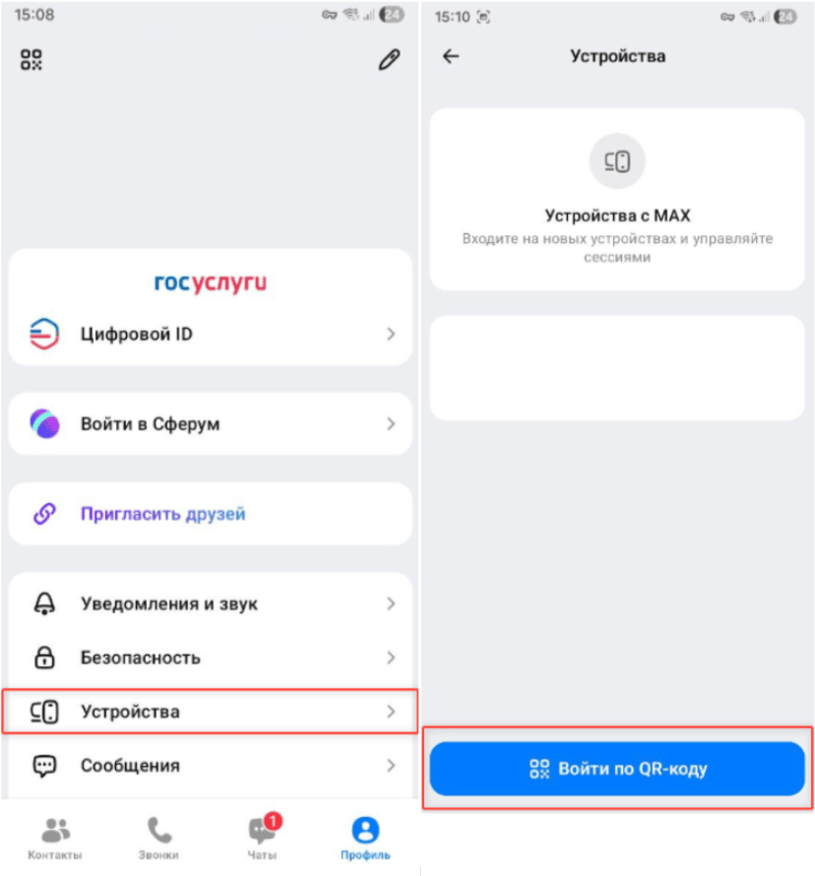
3. Open the MAX application on your phone and go to "Profile — Devices — Log in by QR code", then scan the QR code.
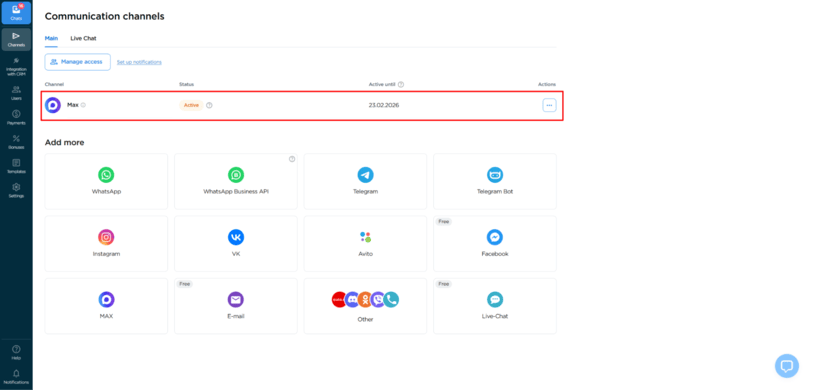
4. After successful authorization, the connection window will close automatically, and the MAX channel will appear in the list of connected channels.
5. Next, set up the integration with amoCRM. To do this, select the "CRM Integration" section in the left menu of Umnico and click amoCRM.
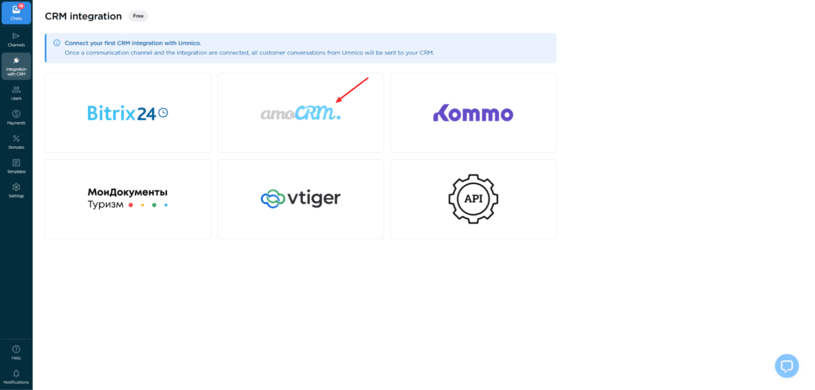
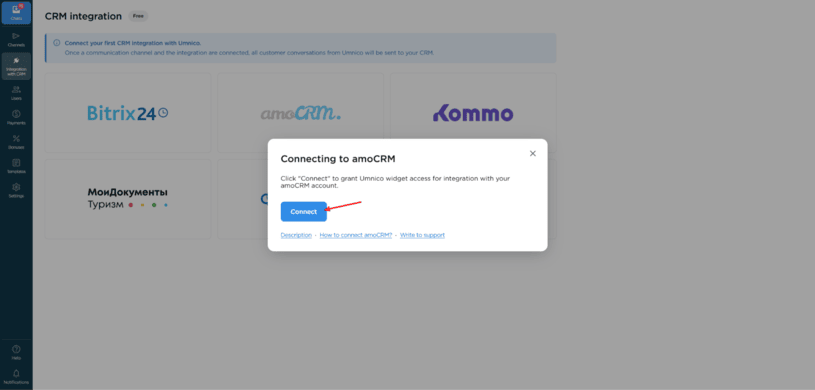
6. In the window that opens, click "Connect".
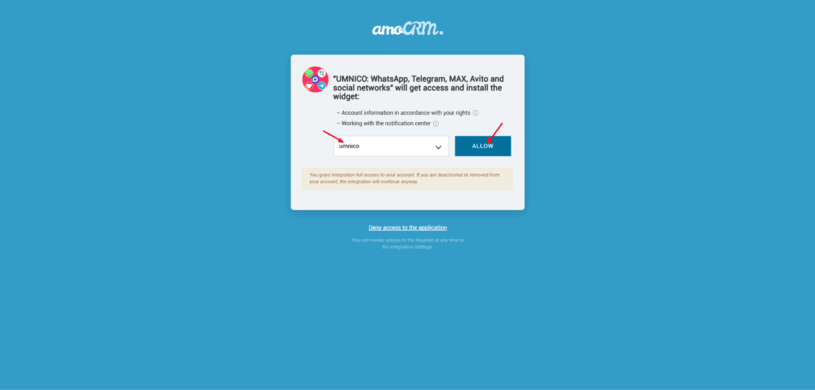
7. In the tab that opens, select your amoCRM account. For the account to be displayed, you need to log in to amoCRM first. After that, click "Allow".
8. After granting access, the Umnico page with integration settings will open. Here you need to specify the parameters for deal transfer, select the channel for the first message, determine the display of Umnico widget buttons in amoCRM, and configure employee access rights.
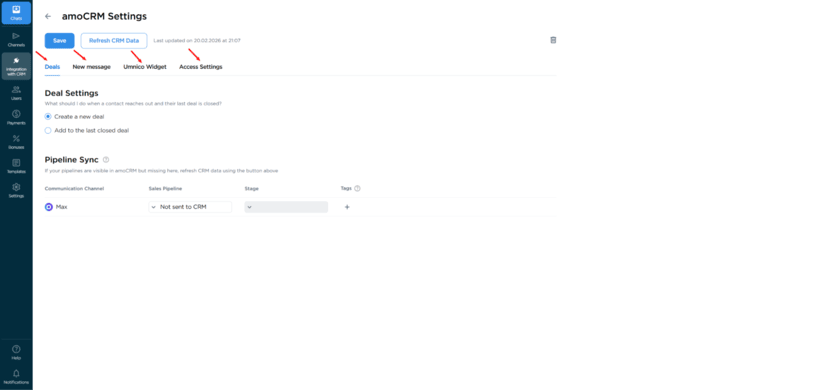
amoCRM connection settings in Umnico
Let's review the main parameters of MAX integration with amoCRM.
Pipeline synchronization — allows you to select the amoCRM pipeline and status to which deals will be transferred.
When transferring a deal to a specific pipeline and to any next status after "Unsorted", tags are automatically created in the deal indicating:
- the integration channel through which the request was received;
- the message type — message or comment.
If you need deals to be transferred to "Unsorted", select the setting "Send to 'Unsorted' of the main pipeline".
Please note: in this case, tags and work phone will not be added to the deal.
Write first — the ability to initiate a dialogue with a customer from a deal, even if there was no previous correspondence with them. The function works with connected integration and is available for WhatsApp, Telegram Personal, and Max.
Deal settings — allows you to specify what to do when a customer contacts again regarding an archived or closed deal:
- create a new deal;
- send a message to the last closed deal.
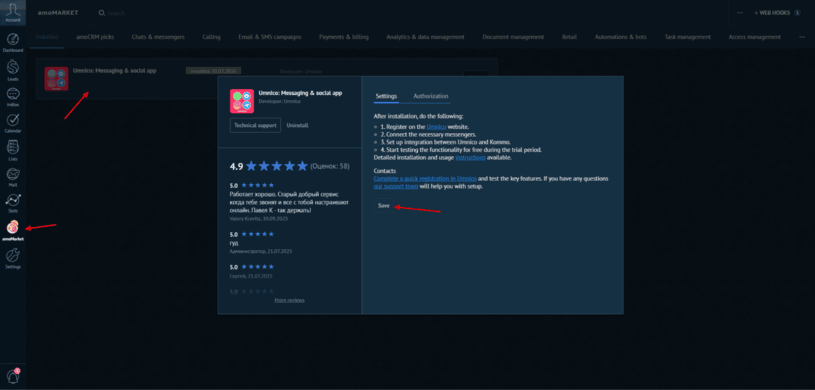
After completing the setup, click the "Save" button. This completes the integration connection with amoCRM.

If you have any questions, contact us in the "Help — Chat with operator" section, we will be happy to help.
Learn more about MAX capabilities for customer support in our blog.
You might also be interested in
Customer Communication Management Guide
How to Set Up an Instagram Shop

 3-days free trial period