Telegram Web: The Ultimate Guide
Explore the available options for using the popular messenger in a browser window.

With over 1 billion monthly users, Telegram is one of the most popular messaging apps globally. However, there is no need to be tethered to the small screens of mobile devices when using it. Telegram Web is a simple, installation-free solution that brings the full power of the messaging app to any PC or Mac browser.
In this article, we’ll explore the benefits of Telegram Web, how to get started with it, and how it compares to desktop apps in terms of functionality and use case scenarios.
Table of contents:


What is Telegram Web
Telegram Web is the official version of the messaging app, which works in popular web browsers such as Google Chrome, Mozilla Firefox, and Safari, and doesn’t require installation.
The solution provides instant access to all essential functionalities of the instant messenger without any setup process. This makes the web version suitable for use on other people's devices or at a workplace. There are two official versions of Telegram Web: Telegram WebK and Telegram WebZ. Being based on different technologies and having slightly different interfaces, both are official Telegram products and support essential messaging functionality.
The difference between Telegram WebK and WebZ
For many users, it is a common point of confusion that a Telegram Web login page offers WebK and WebZ versions of the app (if you don’t see such a choice, check your browser’s address bar – webk.telegram.org signifies that you access the K version, while webz.telegram.org signifies the Z version).
| Telegram WebK | Telegram WebZ |
|---|---|
|
|
Both versions are 100% official and secure ways to use the Telegram app online. Developed by different teams, they have slight differences in their design approach and underlying technological solutions.
- Telegram WebK is a leaner, classic version. It features a minimalist and lightweight interface that often feels a bit snappier, especially on older computers. Its design is a nod to the original web version of Telegram, so its clean and simple layout feels familiar to long-time users. WebK is perfect for anyone who values speed and simplicity above all else while using Telegram in a browser and prefers a traditional UI.
- Telegram WebZ has a sleeker design, smooth animations, and a user interface designed to closely mirror the look and feel of native Telegram personal chats on your phone app. If you love a modern aesthetic and want a consistent experience when switching between your Telegram on multiple devices, WebZ is the choice for you. It ensures that using Telegram on PC feels just like using the app anywhere else.
Key features and advantages of Telegram Web
While the Telegram web version might appear a bit simplified compared to native mobile and desktop apps, it has several advantages that make it highly popular among users.
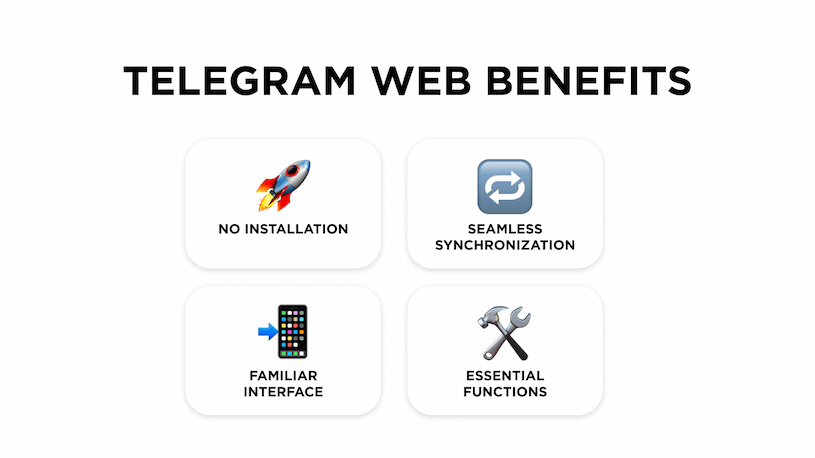
No installation required
The main benefit of Telegram Web is that it does not require any installation. It allows safe usage on a work computer, a friend’s laptop, or even at an internet cafe without requiring program installations. When finished, a user can simply log out of their account or close the browser window.
Seamless synchronization
Telegram’s cloud-based architecture instantly synchronizes all messages, media files, and documents across all devices. A phone message instantly appears on Telegram Web, and vice versa. This allows users to start a conversation on one device and continue it on another without any interruption in the communication process.
Familiar interface
The user interface of Telegram Web is intuitive and closely resembles the design of both the mobile and desktop versions of the messenger. No need to spend time getting used to it - all the controls are located in their usual places, allowing new users to start working efficiently right after logging in.
All essential functions at hand
Telegram Web offers all the key features that you expect from a mobile app. Users can send text messages, photos, videos, and files up to 2GB in size in private chats, groups, and channels (4GB for Telegram Premium users); use stickers, GIFs, and emojis; and manage notification settings for each chat.
Telegram Web vs. Telegram Desktop App: which one is right for you
While both Telegram Web and desktop apps are created to make the instant messenger accessible on Mac and PC, they offer different sets of features and are suitable for different use cases.
| Telegram Web | Telegram Desktop App | |
|---|---|---|
| Requires installation | No | Yes |
| Voice & video calls | Yes (basic) | Yes |
| Secret chats | Not available | Available |
| Multiple account support | No | Yes |
| Customization | Basic | Extensive |
| Automatic media downloads | No | Can be configured |
| Offline access | No | Yes |
| Best for | Quick access, using on public devices | Enjoying full Telegram functionality |
If you want fast and easy access to your chats from any computer without installing anything, Telegram Web is the way to go. If you're an active user who wants all the features, including secret chats, calls, and the ability to work with multiple accounts, a full-featured Telegram app for your computer would be the best option.
How to Use Telegram Web on PC and Mac
To log in and start using Telegram Web, follow these simple steps.
- Open the Web Version in your browser. You will see a QR code on the screen to log in.
- Open the Telegram app on your phone. Go to ‘Settings’ — ‘Devices’ (on iOS) or ‘Settings’ — ‘Linked Devices’ (on Android). Tap the ‘Link Desktop Device’ button.
- Point your phone's camera at the QR code displayed on your computer screen. You will be logged in instantly, and your chats will appear in the browser window.
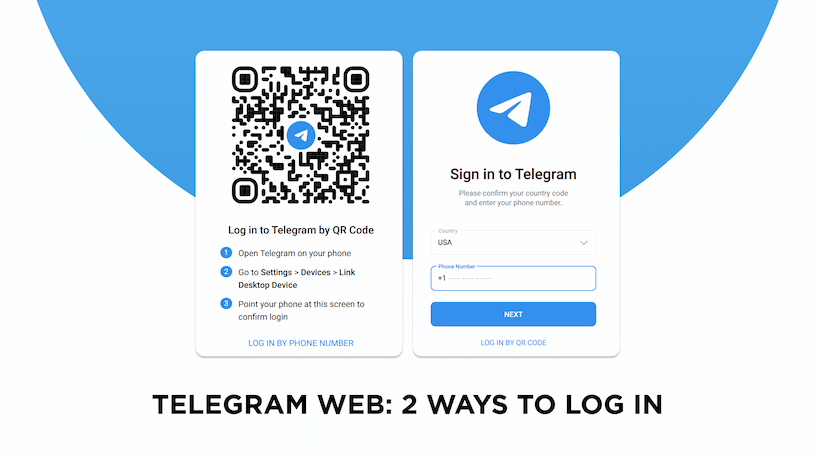
If you can't use your camera, the alternative method is to log in with your phone number.
- On the Telegram Web login page, click the ‘Log in by Phone Number’ link.
- Select your country and enter the phone number linked to your Telegram account. Click ‘Next’.
- Telegram will send a login code to your Telegram app (not as an SMS). You will find it in your chat with the official Telegram account.
- Enter the code you received into the field in your browser. You will be logged in.
Is Telegram Web secure?
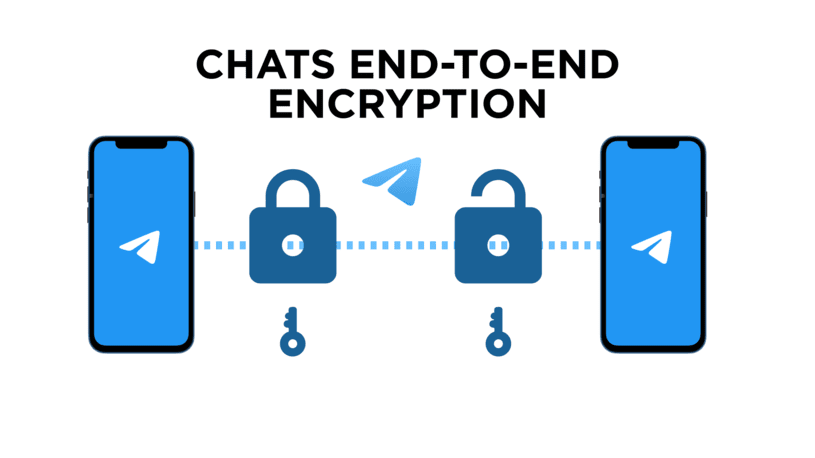
Telegram Web, just as the messaging app in general, uses advanced encryption, which makes it a safe choice for communication. Telegram uses server-client encryption for cloud chats and end-to-end encryption for Secret Chats.
However, it is important to remember that Telegram Web does not support the ‘Secret Chats’ feature, which uses end-to-end (E2E) encryption. Only the sender’s and recipient’s devices can decrypt messages in Secret Chats. This feature is recommended for discussing any sensitive information, which means such matters are better handled using the mobile or desktop apps.
Can I use multiple accounts on the Telegram app online?
Unfortunately, Telegram Web does not support multiple accounts within a single browser, as attempting to log into a second account will simply redirect you to your active session. However, you can overcome this limitation by using different browsers (such as Chrome for one account and Firefox for another) or by utilizing a private/incognito window for an additional account. For those who frequently need to manage multiple accounts, the most convenient solution is the native Telegram app for desktop, which supports adding up to three accounts and switching between them seamlessly from the side menu.
The Umnico omnichannel messaging platform allows businesses to manage multiple Telegram Personal and Telegram Bot accounts in a single interface. Its Telegram integration facilitates group chat management and message automation via Telegram Bots while providing advanced features such as message templates, hotkeys, analytics, and seamless message forwarding to other integrations. The use of Telegram’s official API and compliance with security standards ensure team productivity and prevent missed leads or conversations.
Should I keep my phone on and connected for Telegram Web?
No, and this is one of Telegram Web's biggest advantages over other messaging apps. A phone is required only for the initial authentication, which usually means scanning a QR code to link your account. After you log in, your Telegram Web session works independently, as it connects directly to Telegram's cloud servers.
You can send and receive messages even if your primary phone is off, has a dead battery, or isn't online. The session remains active until you manually log out, and you can also manage and end any active web sessions from the "Devices" menu in your mobile app for extra security.
Why use Telegram Web
Telegram Web is a versatile tool that serves a wide range of users and scenarios. Let’s review some of the most common reasons people choose to open Telegram in a browser.
Quick access from any device
Convenience is the most obvious advantage. In such cases as borrowing a colleague's laptop or using a locked-down work machine that doesn't allow installing software, Telegram Web gives you full access to your chats right away. The web version doesn’t require any downloads, updates, lets you use multiple Telegram accounts, and leaves nothing behind once you log out or close the tab.
Lightweight option for older hardware
If you have ever tried running multiple apps on an older machine, you know that sometimes it comes with significant performance costs. Telegram Web takes up fewer system resources than a standalone software because it operates within a browser tab. Users with older PCs or Chromebooks frequently report that the web version provides a considerably smoother experience, especially when using Telegram WebK client.
Telegram for business from anywhere
Using Telegram for business doesn't always require a dedicated app — for many tasks, Telegram Web provides a convenient way to stay connected with clients, partners, and colleagues. A browser tab is often enough to monitor a support group, check a channel's analytics, or review the recent conversations with customers.
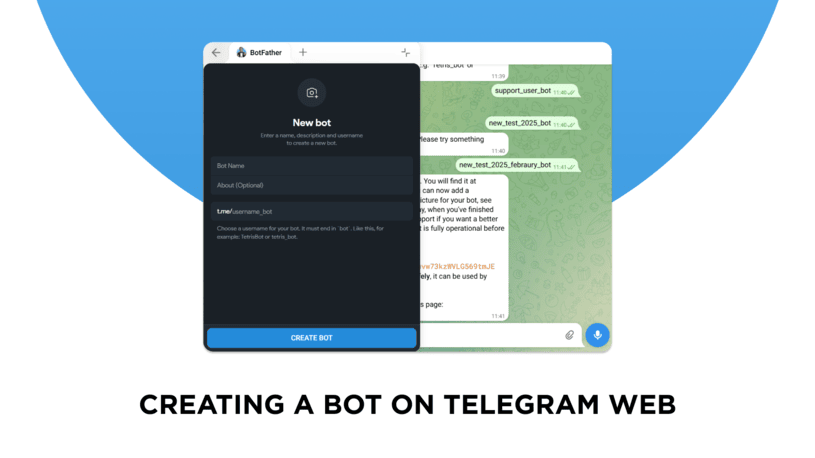
When paired with Telegram bots, the web version becomes even more powerful — their functions are identical in Telegram Web, which allows business users to automate routine tasks without installing additional software. Since Telegram bots run on the messenger’s servers rather than on the user's device, there is zero difference in capability between the web client and the desktop app.
Using multiple Telegram accounts
Freelancers, social-media managers, and business owners frequently use more than one Telegram identity simultaneously. While the web version does not natively support Telegram multiple accounts within a single browser session, the web version actually offers a practical workaround: you can open separate browser profiles or use an incognito window to run an additional account side by side with your main one. This makes Telegram Web a flexible option for anyone who needs to keep personal and professional conversations separate.
Seamless switching between devices
Telegram is a cloud-based messenger, so every conversation or file you send or receive is available on all devices instantly. Starting a conversation on your phone during a commute and picking it up on Telegram Web when you reach your desk is completely seamless.
Logging out of Telegram Web
Knowing how to end your Telegram Web session is just as important as knowing how to log in, especially when you are using a shared or public device.
To log out directly from Telegram Web
1. Open Telegram Web in your browser.
2. Click on the menu icon (three horizontal lines) in the top-left corner.
3. Go to ‘Settings’.
4. Scroll down and click ‘Log Out’.
5. Confirm your action.
If you no longer have access to the browser where you signed in, you can end a Telegram Web session remotely
1. Open the Telegram app on your phone.
2. Go to ‘Settings’ — ‘Devices’.
3. Review the list of active sessions.
4. Select the Telegram Web session you want to terminate and tap ‘Log Out’.
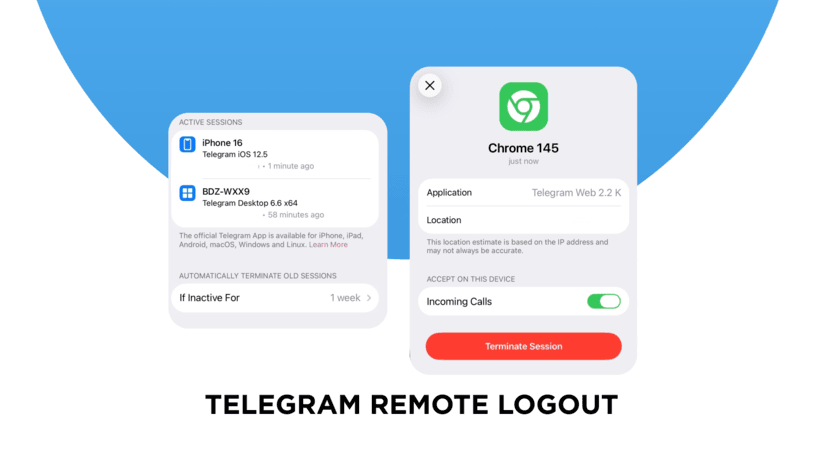
To maintain optimal security, enable two-step verification (2FA) in your settings to provide an additional layer of protection, and frequently monitor the Devices menu to review active sessions for any unfamiliar browsers, IP addresses, or suspicious activity.
Frequently asked questions
Here are answers to some of the popular inquiries about using Telegram Web.
Is Telegram Web free to use?
Yes, Telegram Web is completely free, just like the mobile and desktop versions of the messenger. You can access it by visiting web.telegram.org in any modern browser. Some advanced features (uploading files up to 4 GB or using premium stickers, for instance) require a Telegram Premium subscription, but essential messaging features are free for all.
What is the difference between Telegram WebK and Telegram WebZ?
Telegram WebK and Telegram WebZ are two official versions of Telegram Web. Both support messaging, file sharing, and Telegram bots, but neither supports Secret Chats.
- Telegram WebK is more lightweight and uses fewer system resources.
- Telegram WebZ has a more modern interface and often receives new features first.
Both versions support messaging, file sharing, and Telegram bots, but neither supports Secret Chats.
How do I log in to Telegram Web?
The fastest way to start using Telegram Web is by scanning a QR code. Open web.telegram.org, then open Telegram mobile app and go to Settings, then Devices, then tap Link Desktop Device and point your camera at the code in Telegram Web. Alternatively, click Log in by Phone Number on the web page, enter your number, and type in the verification code that Telegram sends to your mobile app.
Is Telegram Web secure?
Yes, Telegram Web uses the same cloud-based encryption as the mobile and Telegram desktop app for regular chats. However, Secret Chats with end-to-end encryption are only available in the mobile and desktop apps.
Summing things up
Telegram Web is a convenient and lightweight tool for accessing personal chats on a desktop computer. The solution’s simplicity and speed make it a great option for individual users, but there are limitations when it comes to managing multiple accounts in professional or team settings.
For a flexible work environment, support, sales, or marketing teams using Telegram should consider specialized platforms. For example, Umnico’s Telegram CRM lets teams manage multiple accounts from one interface, automating communication via chatbots and templates and routing customer inquiries to the correct agent. Every new user can try this robust and scalable solution for customer communication for free.
You might be interested in similar topics
Telegram Mini Apps and How to Use Them


Subscribe to Umnico news!
Be the first to get recommendations and up-to-date information