MAX Connection to Kommo
The user base of the MAX national messenger has surpassed 100 million. The messaging app offers huge opportunities for local businesses, ranging from direct customer engagement in direct messages to growing customer base via dedicated brand channels.
By integrating MAX with Kommo via the Umnico omnichannel platform, a company can centralize inquiry processing and automate the entire customer journey.
Please note: When integrating Kommo with MAX, the user assumes all potential risks, as the messaging app is not officially supported by Kommo.
How to connect MAX to Umnico
To connect MAX to Kommo, follow simple steps according to our instructions. The connection process will take several minutes.
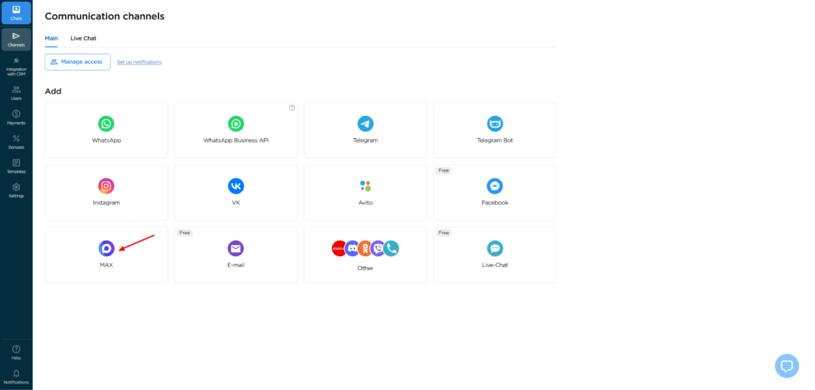
1. In your Umnico personal account, go to the "Channels — Main — MAX" section.
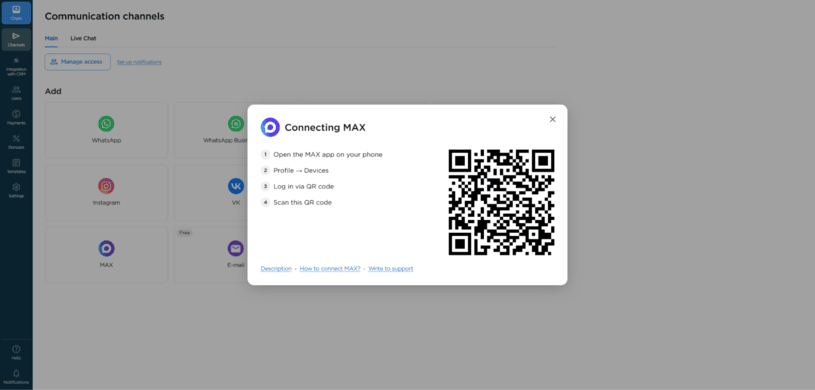
2. In the window that opens, a QR code will be displayed.
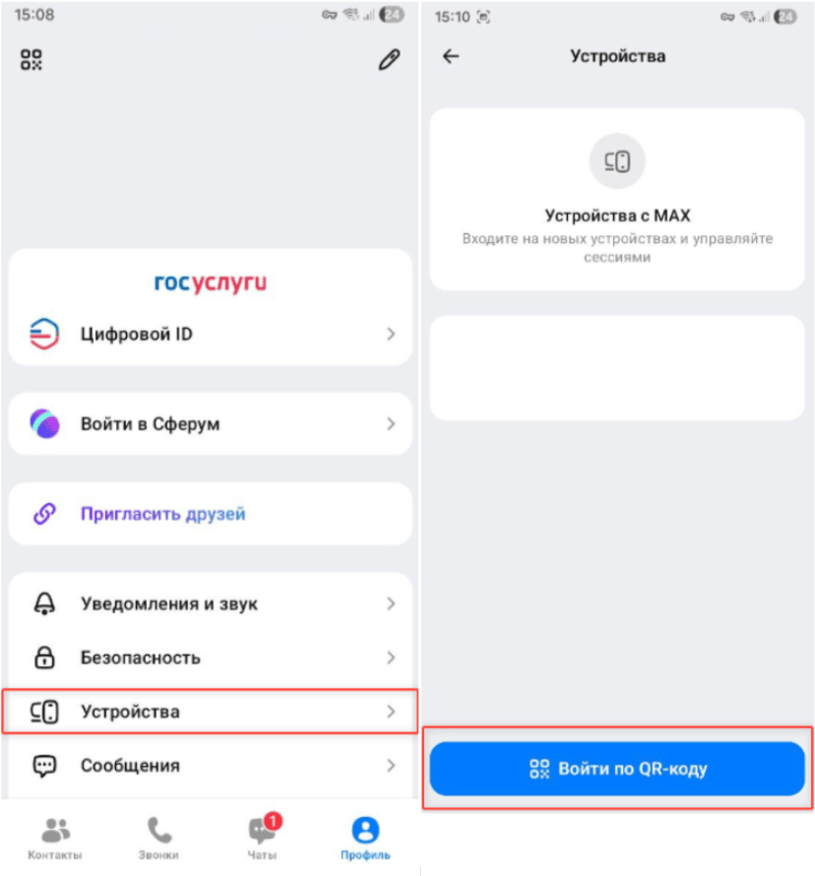
3. Open the MAX app on your phone and go to "Profile — Devices — Log in by QR code", then scan the QR code.
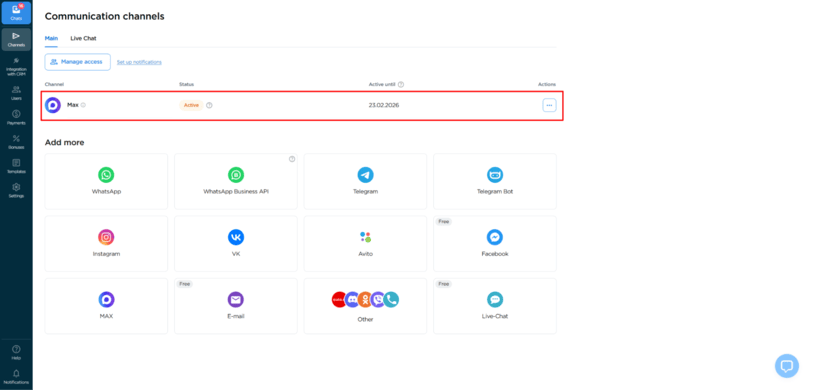
4. After successful authorization, the connection window will close automatically, and the MAX channel will appear in the list of connected channels.
How to connect Kommo to Umnico
The next step is to connect Umnico with Kommo.
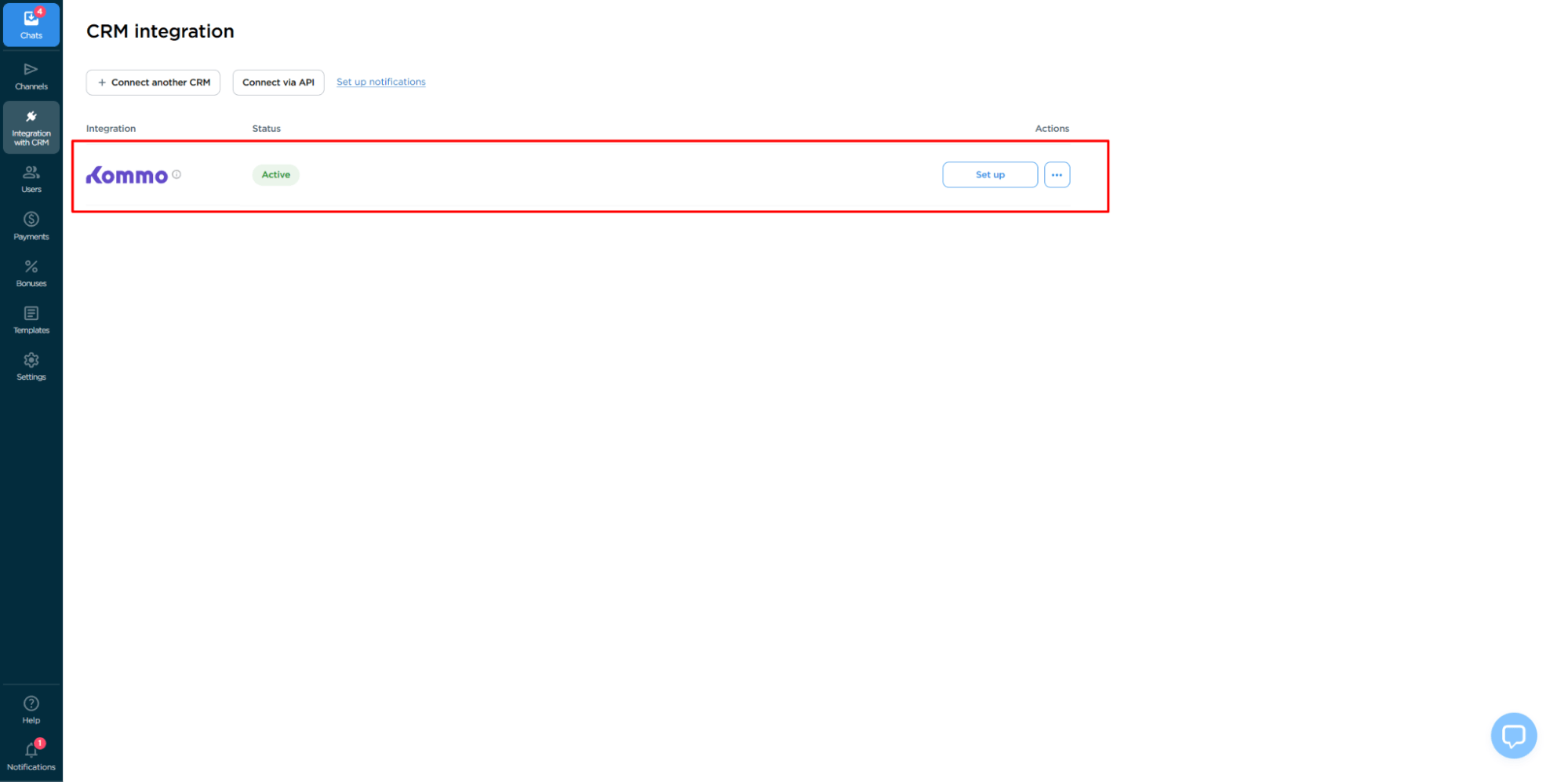
1. In the sidebar menu of your Umnico Personal Account Dashboard, select "CRM Integration — Kommo".
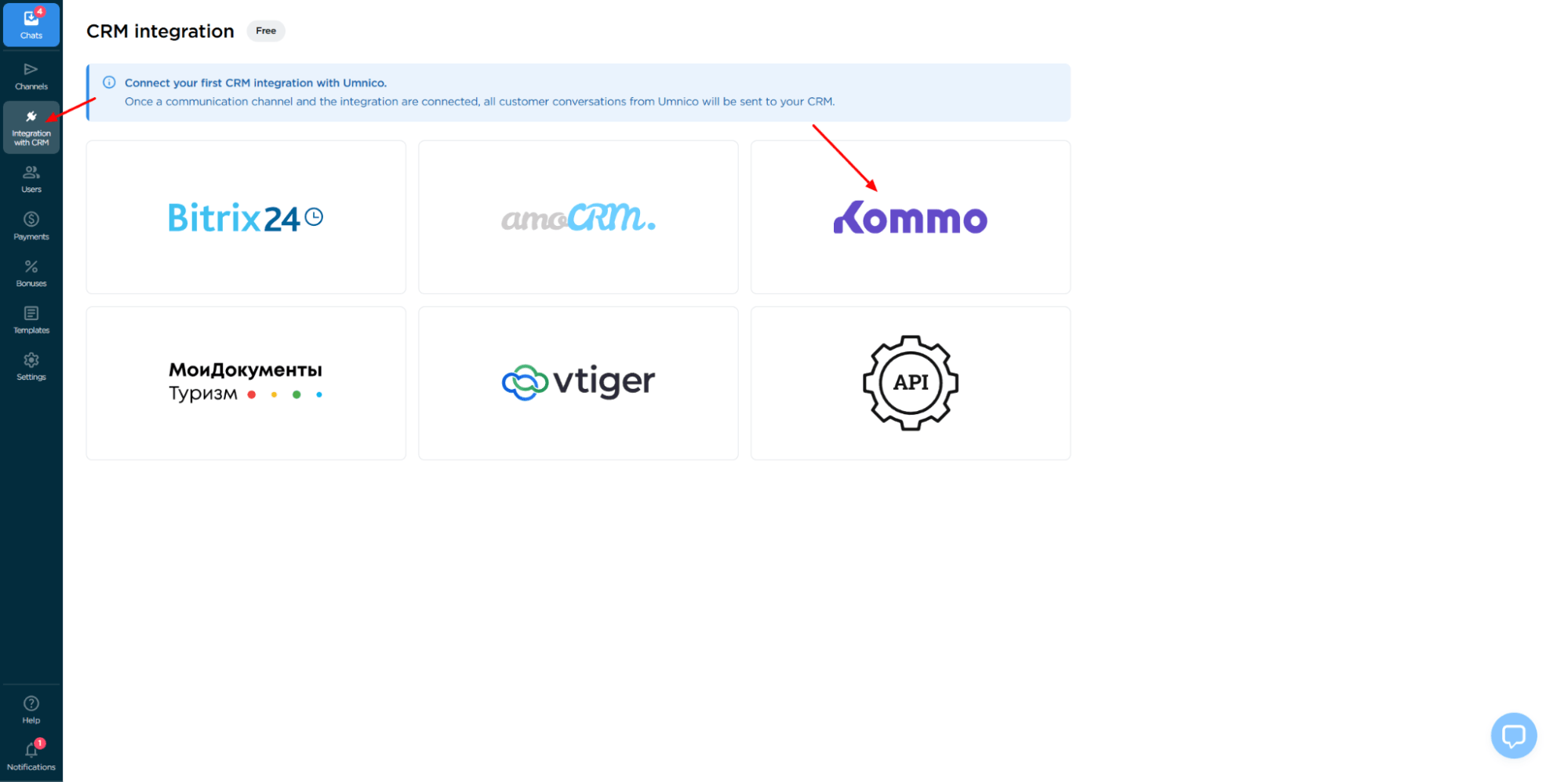
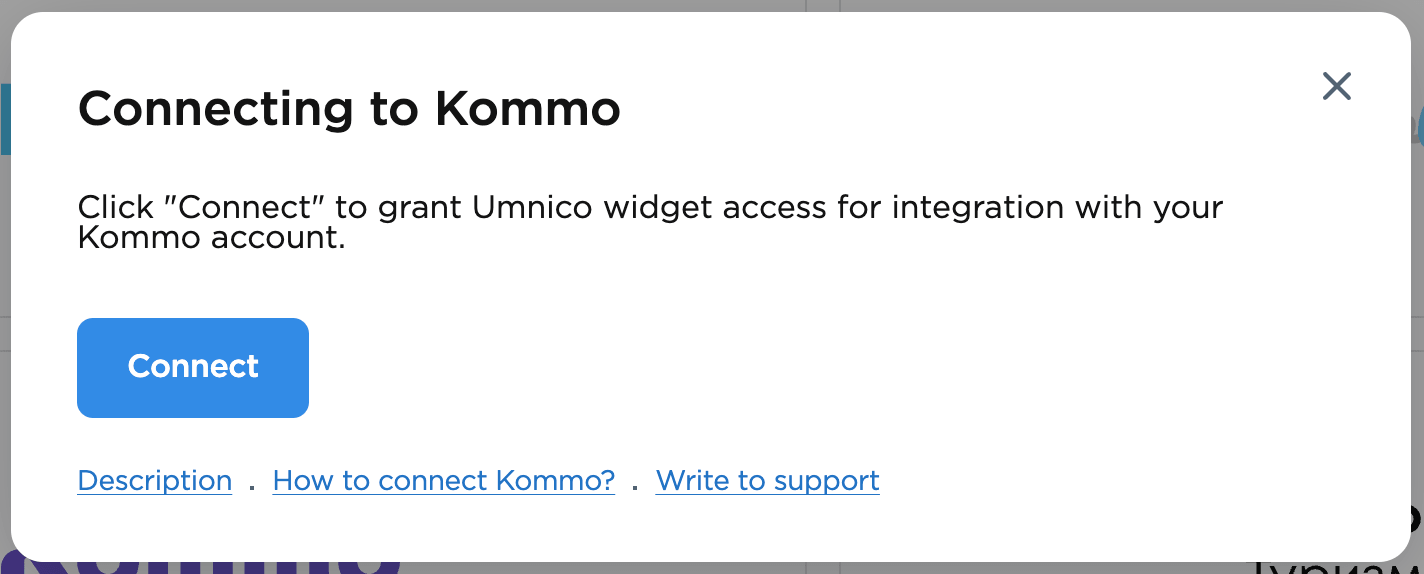
2. Click "Connect". An authorization window will open.
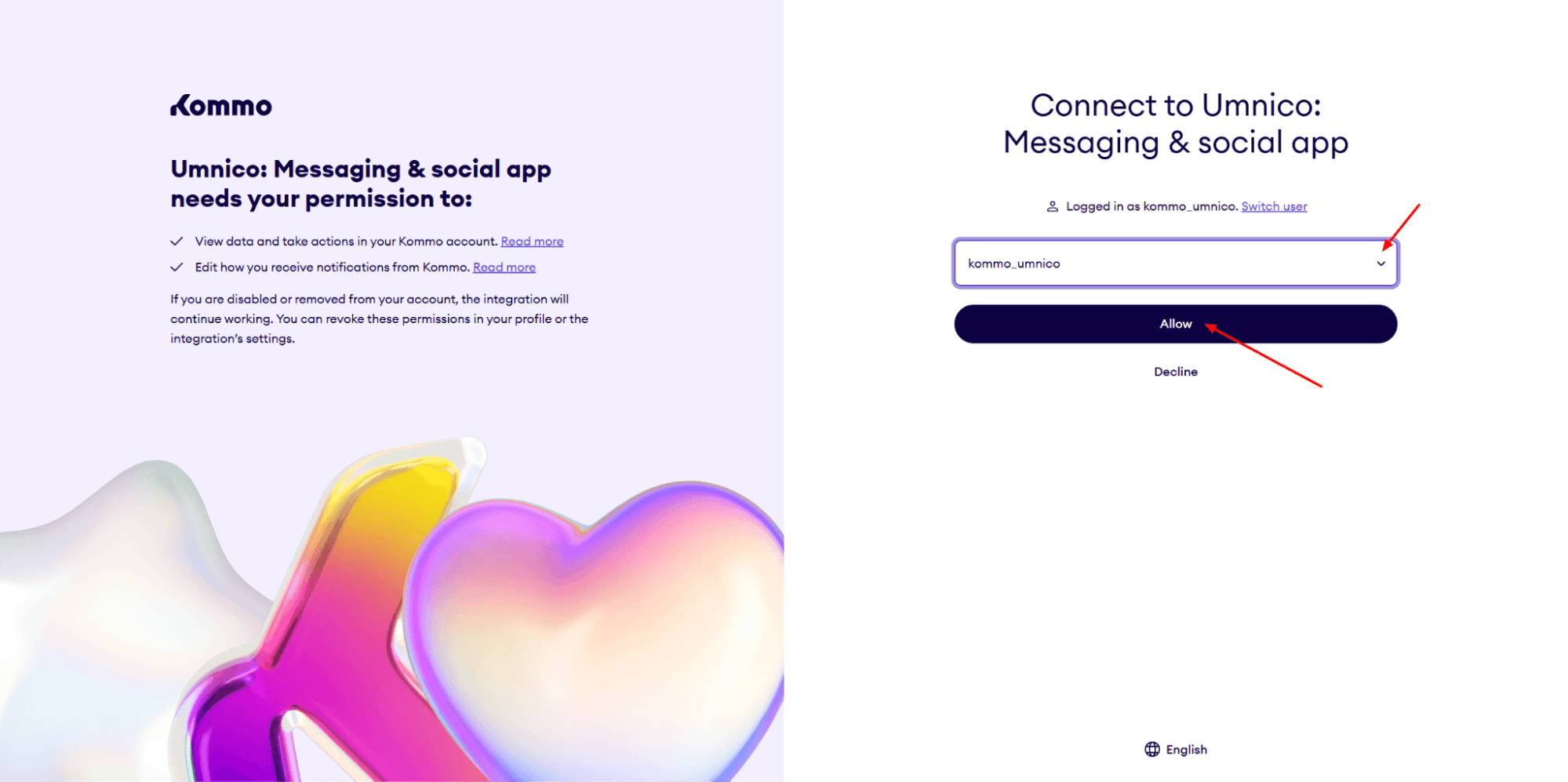
3. In the opened tab, select your Kommo account (you must be logged in), then confirm the integration permission.
4. After connecting, a Settings page will open. In this section, you can configure rules for handling repeat inquiries, pipeline synchronization, Umnico widget display settings, and more.
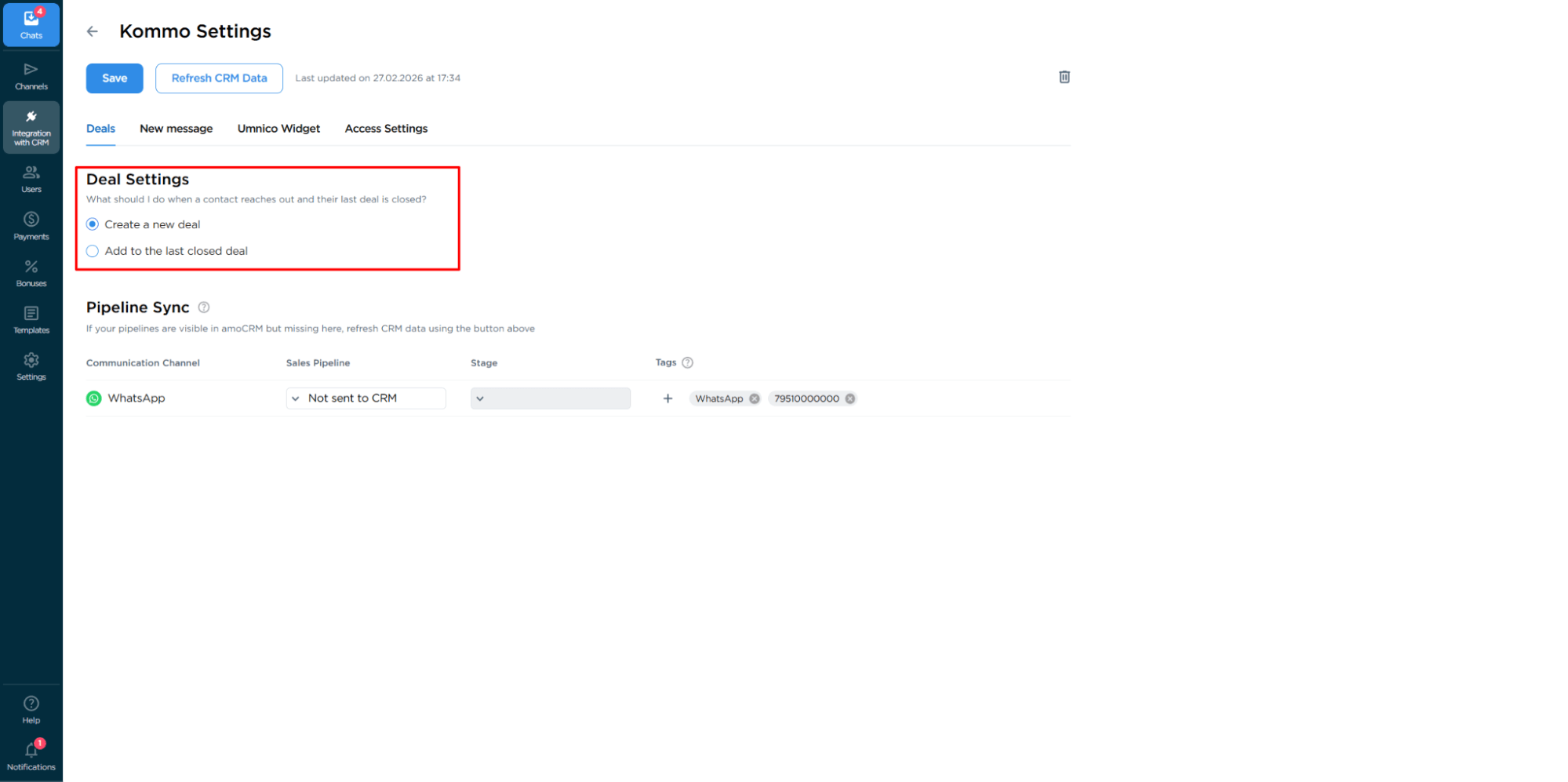
When everything is ready, click "Save" to apply the changes.
5. Done! The integration is fully complete and ready to use.
Help & support
If you have any questions, contact us — we'll be happy to help.
To reach Umnico support, click the "Chat with support" icon in the lower right corner of the screen. Or go to the "Help — Chat with Support" section in your Personal account.
Related guides & articles
We recommend exploring
How to connect MAX to Bitrix24
How to connect MAX to amoCRM
You might be interested
MAX Messaging Super App: What You Need to Know
How to use MAX for business effectively

 3-days free trial period